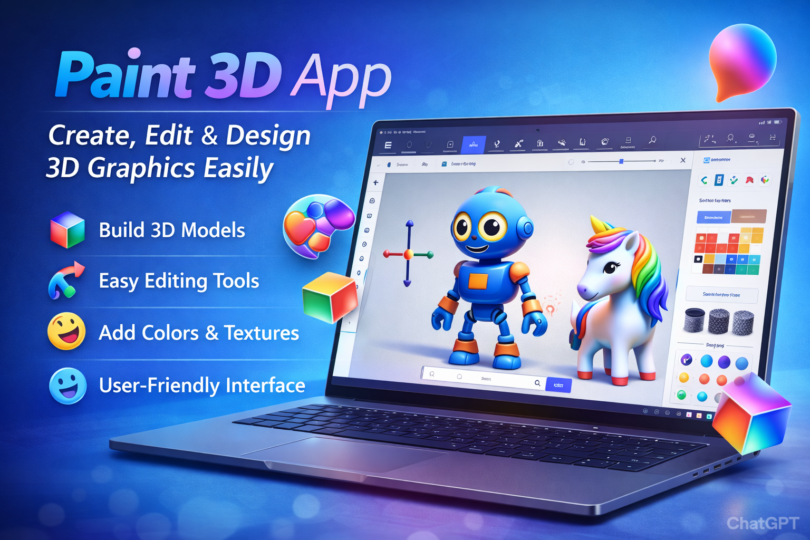

Have you ever wanted to jump into 3D design without needing fancy software or years of practice? Paint 3D makes that possible. This free app from Microsoft lets you build, tweak, and shape 3D objects right on your Windows device.
Paint 3D stands out because it’s simple yet powerful. You start with basic shapes and turn them into detailed models. Whether you’re new to this or have some experience, the app fits right in.
Many people use Paint 3D for fun projects or quick ideas. It connects well with other tools like Remix 3D for sharing work. Let’s dive into what makes this app a go-to for easy 3D creation.
What Is Paint 3D?
Paint 3D is Microsoft’s update to the classic Paint program. It adds 3D tools while keeping 2D drawing options. You can mix both for unique results.
The app came out with Windows 10 Creators Update. It aims to make 3D work fun for everyone. No need for expert skills—just your ideas.
People often call it 3D Paint because of its focus on three-dimensional editing. It handles models from simple cubes to complex figures. Plus, it’s built into many Windows systems.
Key Features
Paint 3D packs a lot into one app. You get tools for drawing, shaping, and coloring in 3D space. The interface feels familiar if you’ve used old Paint.
One big plus is the 3D library. Pull in ready-made objects like animals or buildings. Then customize them to fit your project.
It supports stickers and textures too. Apply them to surfaces for realistic looks. Export options let you save in formats like GLB or FBX for other programs.
- Magic Select Tool: Cut out parts of images to use in 3D.
- 3D Doodle: Draw lines that turn into 3D shapes.
- View Modes: Switch between 2D and 3D views easily.
These features make Paint 3D versatile. You can create art, prototypes, or even educational models.
How to Download and Install Paint 3D?
Getting Paint 3D is straightforward. If you have Windows 10 or later, check the Microsoft Store. Search for it and hit install.
It’s free, so no costs involved. The download is quick, under 100 MB. Once installed, it shows up in your start menu.
For older Windows versions, you might need an update. But most users find it ready to go. Open the app and start exploring right away.
Getting Started with Paint 3D
Launch Paint 3D and you’ll see a clean canvas. Choose New to begin fresh. The toolbar on the side has all your options.
Pick the 3D shapes tab first. Drag a cube or sphere onto the screen. Rotate it with your mouse to see from different angles.
Adjust size by pulling handles. This basic step gets you comfortable. Soon, you’ll build more complex scenes.
Creating Your First 3D Model in Paint 3D
Start simple with Paint 3D. Select a basic shape like a cylinder. Place it on the canvas and resize as needed.
Add color using the brush tool. Click on the object and paint away. Mix colors for shades that pop.
Combine shapes to make something new. Group them together for easy movement. Your first model could be a robot or a house.
- Step 1: Open a new file.
- Step 2: Add a 3D shape.
- Step 3: Color and texture it.
- Step 4: Save your work.
This process in Paint 3D takes minutes. It’s perfect for quick ideas.
Editing Tools in Paint 3D
Editing is where Paint 3D shines. Use the select tool to grab parts of your model. Move, rotate, or scale them freely.
The app has undo and redo buttons. Fix mistakes without starting over. Layer effects add depth to your designs.
For finer changes, zoom in close. Adjust edges or add details with the pencil. 3D Paint mode lets you draw directly on surfaces.
Common edits include:
- Reshaping objects.
- Adding text in 3D.
- Merging multiple items.
These tools keep your work precise. Paint 3D handles it all smoothly.
Design Tips for Better 3D Graphics
Keep designs balanced in Paint 3D. Start with a plan to avoid clutter. Use symmetry for clean looks.
Play with lighting. The app simulates shadows for realism. Test different angles to see how it changes.
Incorporate 2D elements. Draw backgrounds or add images. This blends styles for unique output.
- Tip: Use grids for alignment.
- Tip: Experiment with materials like metal or wood.
- Tip: Share drafts for feedback.
These ideas help your 3D Paint projects stand out. Practice builds skill fast.
Integrating 2D and 3D in Paint 3D
Paint 3D mixes 2D and 3D well. Draw a flat image, then turn it into a 3D object. The inflate tool puffs it up.
Use photos as bases. Import one and trace over it in 3D. This speeds up realistic models.
Switch views often. Check how 2D parts fit with 3D. It creates hybrid art that’s fun to make.
Sharing and Exporting Your Creations
Once done, share from Paint 3D. Export to video or image files. Post on social media directly.
The Remix 3D community is built-in. Upload models for others to use. Download from there too.
Options include:
- Print in 3D if you have a printer.
- Send files to friends.
- Use in other apps like PowerPoint.
Paint 3D makes sharing easy. Your designs reach more people.
Common Challenges and Solutions in Paint 3D
New users might struggle with rotation. Practice with the orbit tool. It gets easier quickly.
File sizes can grow big. Save often and delete extras. This keeps things running smooth.
If the app crashes, update Windows. Most issues fix with that. Online forums have more tips.
- Challenge: Complex models slow down.
- Solution: Simplify shapes.
- Challenge: Color mismatches.
- Solution: Use the eyedropper.
Paint 3D is user-friendly, so problems are rare.
Why Choose Paint 3D Over Other Apps?
Paint 3D is free and simple. Unlike pro software, it doesn’t overwhelm. Yet it has enough tools for serious work.
It’s great for kids or beginners. Schools use it for teaching 3D concepts. Hobbyists love the no-cost entry.
Compared to Blender, it’s lighter. Focus on fun over depth. 3D Paint fans stick with it for quick tasks.
Advanced Uses of Paint 3D
Go beyond basics in Paint 3D. Create animations by exporting frames. Use in VR with compatible devices.
Build custom stickers. Apply them to real-world photos via mixed reality. This adds a tech twist.
For pros, prototype ideas fast. Then move to advanced tools. Paint 3D bridges the gap.
Conclusion
Paint 3D opens up 3D design to anyone. With its easy tools, you create, edit, and share graphics without hassle. Give it a try and see your ideas come to life.
Whether for play or projects, this app delivers. Explore Paint 3D today and unlock your creative side. It’s a solid choice for simple 3D work.